Access Points

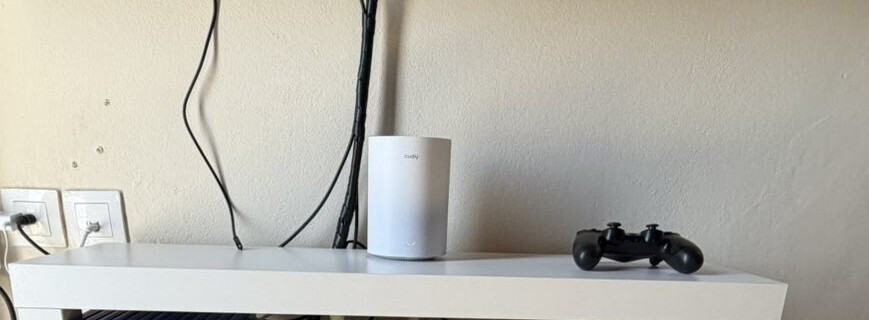
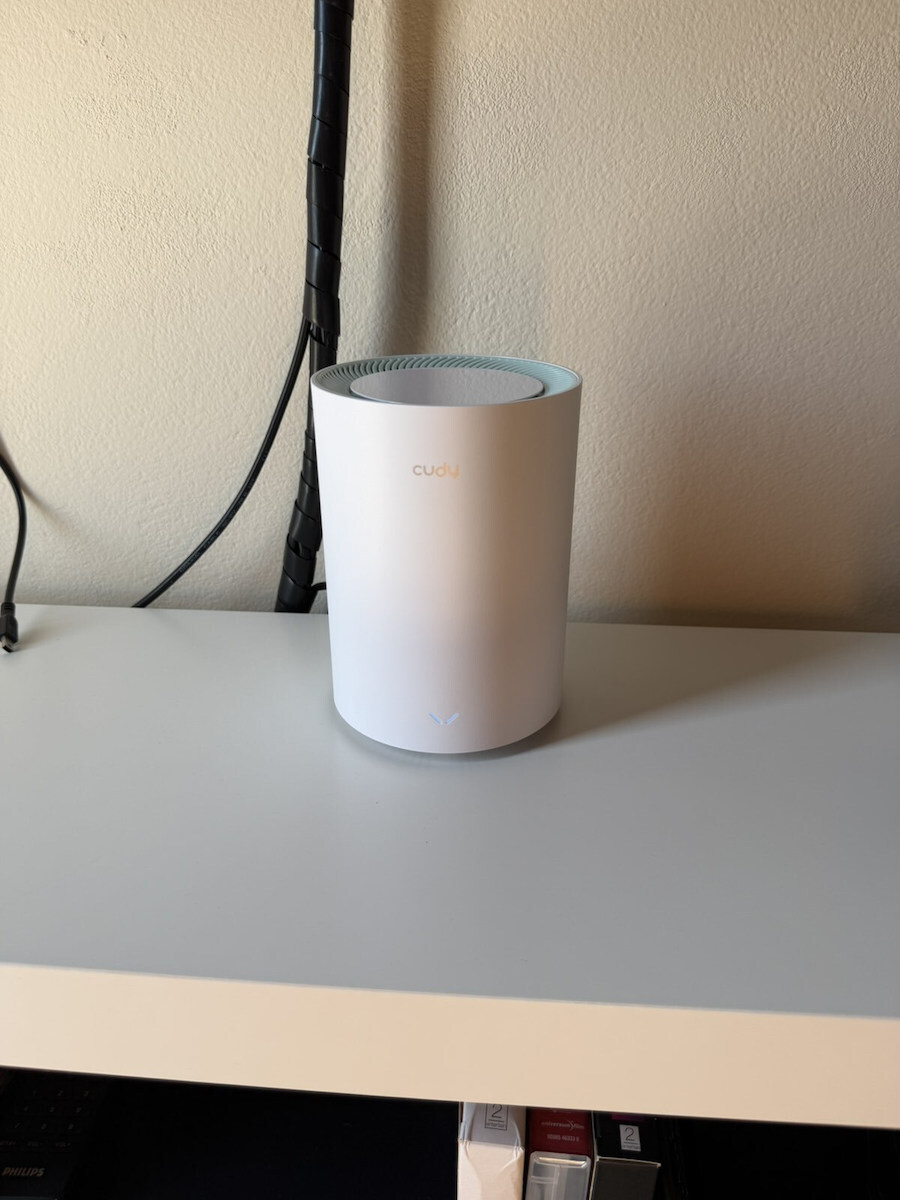
Cudy M1500 Single Kit Access Point with Mesh Wi‑Fi 6 Dual Band (2.4 & 5GHz) White

The Cudy M1500 Wi-Fi 6 AX1500 Mesh delivers fast, reliable Wi-Fi throughout your home or business. With speeds of up to 1201 Mbps + 300 Mbps, it’s ideal for streaming, gaming, and remote work without...

The Cudy M1500 Wi-Fi 6 AX1500 Mesh delivers fast, reliable Wi-Fi throughout your home or business. With speeds of up to 1201 Mbps + 300 Mbps, it’s ideal for streaming, gaming, and remote work without lag.

  • 3 Gigabit Ethernet ports for high-demand wired devices.
  • Fast Roaming technology connects you to the strongest signal.
  • Beamforming and Multi-Band...
See full description See full description

Top specs

  • See all
53 30 €
Delivery by Wed, 02 Dec
14,00 €   shipping cost
Sent from Greece
From Somon 4.9 (14)
Greece
2 pieces
See Networking on the page of Somon

Learn more about invoicing

Description

Description

The Cudy M1500 Wi-Fi 6 AX1500 Mesh delivers fast, reliable Wi-Fi throughout your home or business. With speeds of up to 1201 Mbps + 300 Mbps, it’s ideal for streaming, gaming, and remote work without lag.

  • 3 Gigabit Ethernet ports for high-demand wired devices.
  • Fast Roaming technology connects you to the strongest signal.
  • Beamforming and Multi-Band Simultaneous Backhaul for maximum coverage and stability.
  • Network expansion capability.
  • VPN Client functionality to protect your online activity.
  • Management via the Cudy App and Cloud Control.

The Cudy M1500 is ideal for Wi-Fi without dead zones, delivering high performance and security.

Manufacturer

See full description

Specifications

Specifications

Technical Specifications

Frequency
Dual Band (2.4 & 5GHz)
Maximum WLAN Speed
1500 Mbps
Wi-Fi Generation
Wi‑Fi 6
IEEE Networking Standards
802.11 b/g/n, 802.11a, 802.11ac, 802.11ax
Wi-Fi Mesh Network
Yes
Ethernet Backhaul
No

General Characteristics

Placement
Indoor
Packaging
Single Kit

Installation Type

Ceiling
No
Wall
No
Board games
Yes

Important information

Specifications are collected from official manufacturer websites. Please verify the specifications before proceeding with your final purchase. If you notice any problem you can report it here.

See all specifications

Reviews (6)

Reviews

  1. 5
  2. 1
  3. 3 stars
    0
  4. 2 stars
    0
  5. 1 star
    0
Review this product

Reviews photos

Reviews photos
Reviews photos
Reviews photos

Reviews by our members

  • Anastasioς

    Verified purchase

    I wasn’t concerned about the speed, so for my use (FB, Insta, TT, and simple browsing), it’s fantastic for the price.

    Translated from Greek ·
    Did you find this review helpful?
  • Billinho

    Verified purchase

    I use it as an access point on the second floor of the house where I don't have a router or any extender. It connects wired via an Ethernet network cable to the main Cosmote router located on the lower floor of the house. So far it works flawlessly, it covers the whole house, has a very good signal, the Wi‑Fi 6 Dual Band (2.4 & 5GHz) antenna, and the installation is very easy through the Android app or via PC. The most important tip is to connect it and power it wired with the router, so it doesn't lose even 1 byte of internet speed.

    Translated from Greek ·
    Did you find this review helpful?
  • vagtor100
    5
    6 out of 6 members found this review helpful

    I would have deducted stars because I had trouble connecting one of the mesh units to my computer via ethernet, but I was rewarded with the result as I can now reach my 300 Mbps speed! If there are any instabilities etc., I will come back to write about it, but I don't think so!

    So, to have a direct internet connection, you connect it to its LAN port (not the WAN) with an ethernet cable to your computer and open 192.168.10.1 (if you get stuck, thank goodness for chatgpt). You enter the first password, a new one for the Cudy, then when it's time during the quick setup, you choose 'client' and enter your router's password just like when you connect to your wifi! You wait for a while, as I thought I was doing something wrong because it wasn't connecting, but it found it by itself and I had internet (it connected on the 5GHz band)! Note: the router is 8-9 meters away with a wall in between!

    So, don't waste money on powerlines anymore because it's hard for them to give you the speed, since there are other factors like your home's wiring (for me, the same powerlines only got 50 Mbps on a 300 Mbps line and 100 Mbps on a 100 Mbps line in another house!!! That's why I went with this solution). Very satisfied!!!

    P.S.: After disconnecting your router from power due to an outage or if you unplug it, when the power returns, there is a chance the Cudy will go offline... you won't notice immediately as the Cudy continues to act as an antenna but with much lower speeds, like 50 instead of 300... so you just do a quick setup again. Find its IP from your router's wifi, enter it in your browser and it opens the Cudy interface, enter the passwords you set before, log in, do a quick setup, connect it to your wifi with your wifi passwords just like you do on your phone, and you have 300 Mbps again!

    Translated from Greek ·
    Did you find this review helpful?
  • Verified purchase

  • Verified purchase

  • I wasn’t concerned about the speed, so for my use (FB, Insta, TT, and simple browsing), it’s fantastic for the price.

    Translated from Greek ·
    0
  • I use it as an access point on the second floor of the house where I don't have a router or any extender. It connects wired via an Ethernet network cable to the main Cosmote router located on the lower floor of the house. So far it works flawlessly, it covers the whole house, has a very good signal, the Wi‑Fi 6 Dual Band (2.4 & 5GHz) antenna, and the installation is very easy through the Android app or via PC. The most important tip is to connect it and power it wired with the router, so it doesn't lose even 1 byte of internet speed.

    Translated from Greek ·
    0
  • I would have deducted stars because I had trouble connecting one of the mesh units to my computer via ethernet, but I was rewarded with the result as I can now reach my 300 Mbps speed! If there are any instabilities etc., I will come back to write about it, but I don't think so!

    So, to have a direct internet connection, you connect it to its LAN port (not the WAN) with an ethernet cable to your computer and open 192.168.10.1 (if you get stuck, thank goodness for chatgpt). You enter the first password, a new one for the Cudy, then when it's time during the quick setup, you choose 'client' and enter your router's password just like when you connect to your wifi! You wait for a while, as I thought I was doing something wrong because it wasn't connecting, but it found it by itself and I had internet (it connected on the 5GHz band)! Note: the router is 8-9 meters away with a wall in between!

    So, don't waste money on powerlines anymore because it's hard for them to give you the speed, since there are other factors like your home's wiring (for me, the same powerlines only got 50 Mbps on a 300 Mbps line and 100 Mbps on a 100 Mbps line in another house!!! That's why I went with this solution). Very satisfied!!!

    P.S.: After disconnecting your router from power due to an outage or if you unplug it, when the power returns, there is a chance the Cudy will go offline... you won't notice immediately as the Cudy continues to act as an antenna but with much lower speeds, like 50 instead of 300... so you just do a quick setup again. Find its IP from your router's wifi, enter it in your browser and it opens the Cudy interface, enter the passwords you set before, log in, do a quick setup, connect it to your wifi with your wifi passwords just like you do on your phone, and you have 300 Mbps again!

    Translated from Greek ·
    6
  • 0
  • 0
  • See all

Description & Specifications

The Cudy M1500 Wi-Fi 6 AX1500 Mesh delivers fast, reliable Wi-Fi throughout your home or business. With speeds of up to 1201 Mbps + 300 Mbps, it’s ideal for streaming, gaming, and remote work without lag.

  • 3 Gigabit Ethernet ports for high-demand wired devices.
  • Fast Roaming technology connects you to the strongest signal.
  • Beamforming and Multi-Band Simultaneous Backhaul for maximum coverage and stability.
  • Network expansion capability.
  • VPN Client functionality to protect your online activity.
  • Management via the Cudy App and Cloud Control.

The Cudy M1500 is ideal for Wi-Fi without dead zones, delivering high performance and security.

Manufacturer

Technical Specifications

Frequency
Dual Band (2.4 & 5GHz)
Maximum WLAN Speed
1500 Mbps
Wi-Fi Generation
Wi‑Fi 6
IEEE Networking Standards
802.11 b/g/n, 802.11a, 802.11ac, 802.11ax
Wi-Fi Mesh Network
Yes
Ethernet Backhaul
No

General Characteristics

Placement
Indoor
Packaging
Single Kit

Installation Type

Ceiling
No
Wall
No
Board games
Yes

Important information

Specifications are collected from official manufacturer websites. Please verify the specifications before proceeding with your final purchase. If you notice any problem you can report it here.

Reviews (6)

  1. 5
  2. 1
  3. 3 stars
    0
  4. 2 stars
    0
  5. 1 star
    0
Review this product

Reviews photos

Reviews photos
Reviews photos
Reviews photos

Reviews by our members

  • Anastasioς

    Verified purchase

    I wasn’t concerned about the speed, so for my use (FB, Insta, TT, and simple browsing), it’s fantastic for the price.

    Translated from Greek ·
    Did you find this review helpful?
  • Billinho

    Verified purchase

    I use it as an access point on the second floor of the house where I don't have a router or any extender. It connects wired via an Ethernet network cable to the main Cosmote router located on the lower floor of the house. So far it works flawlessly, it covers the whole house, has a very good signal, the Wi‑Fi 6 Dual Band (2.4 & 5GHz) antenna, and the installation is very easy through the Android app or via PC. The most important tip is to connect it and power it wired with the router, so it doesn't lose even 1 byte of internet speed.

    Translated from Greek ·
    Did you find this review helpful?
  • vagtor100
    5
    6 out of 6 members found this review helpful

    I would have deducted stars because I had trouble connecting one of the mesh units to my computer via ethernet, but I was rewarded with the result as I can now reach my 300 Mbps speed! If there are any instabilities etc., I will come back to write about it, but I don't think so!

    So, to have a direct internet connection, you connect it to its LAN port (not the WAN) with an ethernet cable to your computer and open 192.168.10.1 (if you get stuck, thank goodness for chatgpt). You enter the first password, a new one for the Cudy, then when it's time during the quick setup, you choose 'client' and enter your router's password just like when you connect to your wifi! You wait for a while, as I thought I was doing something wrong because it wasn't connecting, but it found it by itself and I had internet (it connected on the 5GHz band)! Note: the router is 8-9 meters away with a wall in between!

    So, don't waste money on powerlines anymore because it's hard for them to give you the speed, since there are other factors like your home's wiring (for me, the same powerlines only got 50 Mbps on a 300 Mbps line and 100 Mbps on a 100 Mbps line in another house!!! That's why I went with this solution). Very satisfied!!!

    P.S.: After disconnecting your router from power due to an outage or if you unplug it, when the power returns, there is a chance the Cudy will go offline... you won't notice immediately as the Cudy continues to act as an antenna but with much lower speeds, like 50 instead of 300... so you just do a quick setup again. Find its IP from your router's wifi, enter it in your browser and it opens the Cudy interface, enter the passwords you set before, log in, do a quick setup, connect it to your wifi with your wifi passwords just like you do on your phone, and you have 300 Mbps again!

    Translated from Greek ·
    Did you find this review helpful?
  • Verified purchase

  • Verified purchase

  • I wasn’t concerned about the speed, so for my use (FB, Insta, TT, and simple browsing), it’s fantastic for the price.

    Translated from Greek ·
    0
  • I use it as an access point on the second floor of the house where I don't have a router or any extender. It connects wired via an Ethernet network cable to the main Cosmote router located on the lower floor of the house. So far it works flawlessly, it covers the whole house, has a very good signal, the Wi‑Fi 6 Dual Band (2.4 & 5GHz) antenna, and the installation is very easy through the Android app or via PC. The most important tip is to connect it and power it wired with the router, so it doesn't lose even 1 byte of internet speed.

    Translated from Greek ·
    0
  • I would have deducted stars because I had trouble connecting one of the mesh units to my computer via ethernet, but I was rewarded with the result as I can now reach my 300 Mbps speed! If there are any instabilities etc., I will come back to write about it, but I don't think so!

    So, to have a direct internet connection, you connect it to its LAN port (not the WAN) with an ethernet cable to your computer and open 192.168.10.1 (if you get stuck, thank goodness for chatgpt). You enter the first password, a new one for the Cudy, then when it's time during the quick setup, you choose 'client' and enter your router's password just like when you connect to your wifi! You wait for a while, as I thought I was doing something wrong because it wasn't connecting, but it found it by itself and I had internet (it connected on the 5GHz band)! Note: the router is 8-9 meters away with a wall in between!

    So, don't waste money on powerlines anymore because it's hard for them to give you the speed, since there are other factors like your home's wiring (for me, the same powerlines only got 50 Mbps on a 300 Mbps line and 100 Mbps on a 100 Mbps line in another house!!! That's why I went with this solution). Very satisfied!!!

    P.S.: After disconnecting your router from power due to an outage or if you unplug it, when the power returns, there is a chance the Cudy will go offline... you won't notice immediately as the Cudy continues to act as an antenna but with much lower speeds, like 50 instead of 300... so you just do a quick setup again. Find its IP from your router's wifi, enter it in your browser and it opens the Cudy interface, enter the passwords you set before, log in, do a quick setup, connect it to your wifi with your wifi passwords just like you do on your phone, and you have 300 Mbps again!

    Translated from Greek ·
    6
  • 0
  • 0
  • See all
53,30 €
14,00 €   shipping cost